
Download FastestFox – Fast Search, Instant Research, Free Browser Tool
Overview
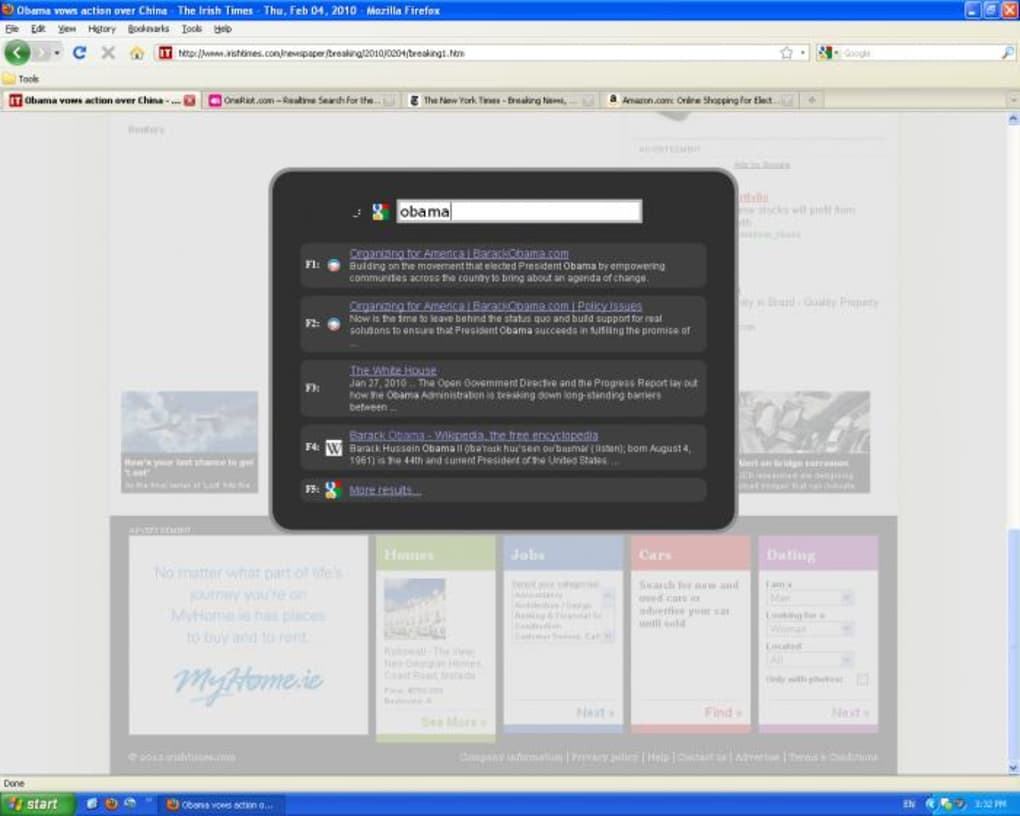
FastestFox is the latest evolution of the once‑named SmarterFox, a browser‑integrated search accelerator that promises to make online research feel instantaneous. The new version 3 arrives with a refreshed brand, a handful of smart tweaks, and a brand‑new “definitions” feature that surfaces quick explanations for highlighted terms. At its core, FastestFox adds a contextual pop‑up bubble whenever you select a word or phrase on a webpage. From that bubble you can launch a search on dozens of services—Twitter, YouTube, Bing, OneRiot, and many more—without ever leaving the page you’re reading. The results open in a new tab, preserving your original context while delivering the data you need in seconds.
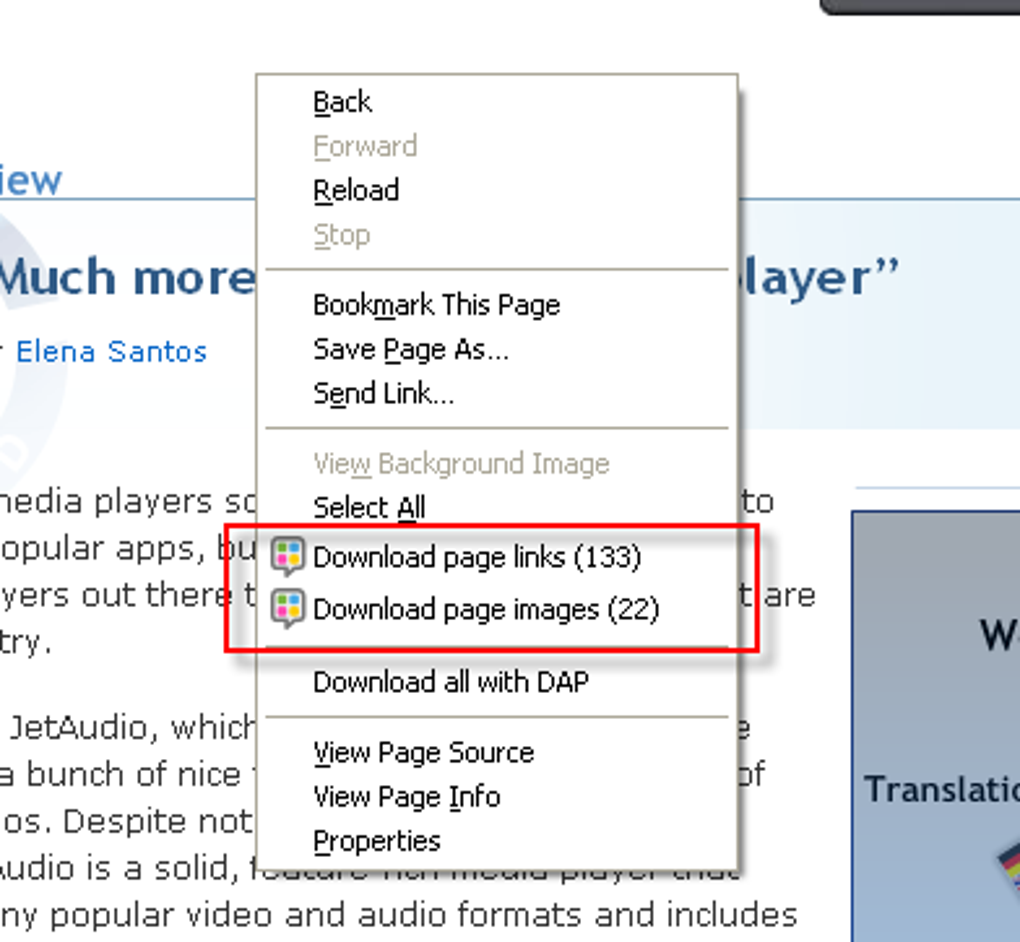
The tool isn’t just about multi‑engine look‑ups. It also bundles a bulk‑download option that grabs every image or link on a page with a single click. While the “all‑or‑nothing” approach may feel heavy for some, power users who need to archive reference material will appreciate the speed.
Another standout is the “endless page” mode, which stitches together multiple search result pages into one scrollable feed—perfect for deep‑dive research on Google or other search engines. Configuration options are extensive, allowing you to tailor the pop‑up’s appearance, choose default services, and even define custom shortcuts. The only notable downside remains the qLauncher, a niche “search‑within‑a‑search” feature that feels under‑developed and unchanged from previous releases.
In short, FastestFox is a free, secure, and regularly updated browser extension that centralises the chaotic world of online search. Whether you’re a student compiling sources, a marketer hunting trends, or just a curious net‑surfer, FastestFox can shave minutes—or even hours—off your workflow.
Key Features & Functionalities
- Contextual Search Bubble: Highlight any text and instantly choose from a list of over 20 search services.
- Multi‑Engine Support: Built‑in shortcuts for Google, Bing, DuckDuckGo, YouTube, Twitter, Reddit, Wikipedia, and niche platforms like OneRiot.
- Definitions Feature: New in v3 – fetch concise dictionary definitions without opening a separate tab.
- Bulk Download: One‑click download of all images or hyperlinks on the current page (all‑or‑nothing mode).
- Endless Page Mode: Merge consecutive result pages into a single, scroll‑friendly view for seamless browsing.
- Highly Customisable UI: Adjust bubble size, colour, opacity, and default search engine via the settings panel.
- Keyboard Shortcuts: Assign custom hotkeys for instant access to your favourite services.
- qLauncher (Experimental): Search‑within‑search tool that lets you refine results without leaving the original query.
- Automatic Updates: Secure, background updates keep the extension compatible with the latest browser versions.
- Privacy‑First Architecture: No personal data is stored or transmitted; all searches are performed directly with the chosen service.
Installation, Usage & Compatibility
How to Install FastestFox
Getting FastestFox up and running is a straightforward three‑step process:
- Visit the official FastestFox download page or the Chrome Web Store / Firefox Add‑ons marketplace.
- Click the “Add to Chrome” (or “Add to Firefox”) button. A permission dialog will appear, requesting access to read and change data on the websites you visit – this is essential for the contextual bubble to work.
- Confirm the installation. The extension icon appears next to your address bar, and a quick “Welcome Tour” runs the first time you highlight text.
First‑Run Configuration
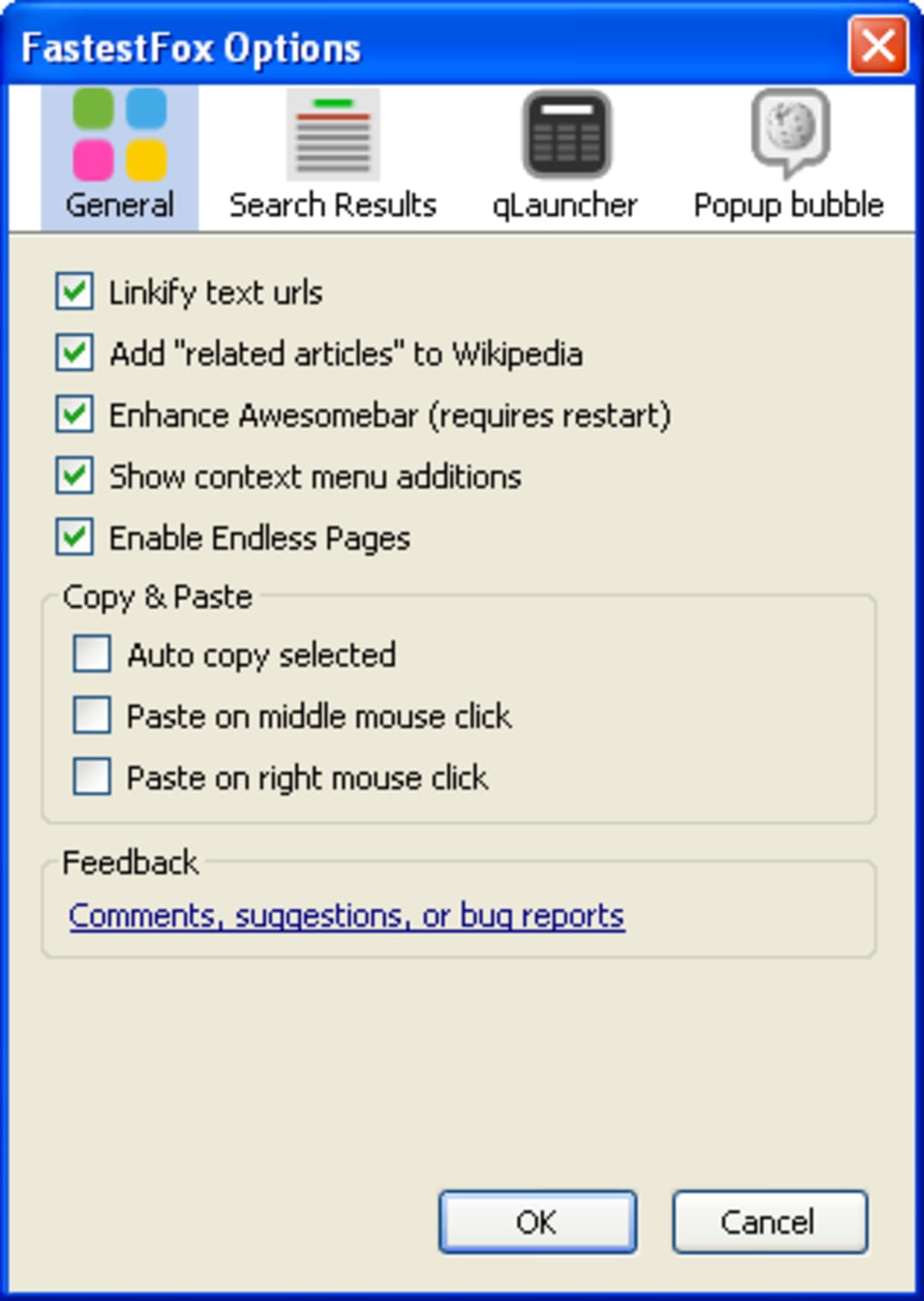
After installation, open the FastestFox settings panel by clicking the fox icon and selecting “Options.” Here you can:
- Choose your default search engine for the bubble.
- Enable or disable the definitions feature.
- Activate “Endless Page” mode for Google, Bing, or any other supported engine.
- Set hotkeys for bulk download, qLauncher, and direct service calls.
All changes are saved automatically and take effect immediately, so you can start testing the tool on any webpage right away.
Daily Workflow Example
Imagine you’re researching “renewable energy incentives” for a blog post. Highlight the phrase, and the FastestFox bubble appears with icons for Google, Wikipedia, YouTube, and a “Definition” button. Click the Wikipedia icon – a new tab opens with the relevant article, while the original page remains untouched.
Need a quick definition? Hit the “Definition” button and a tooltip shows “A financial benefit provided by governments to encourage investment in renewable energy.” No extra clicks, no leaving your research flow. If you need to collect all reference links on a source page, press the bulk‑download hotkey; all URLs are saved to a .txt file on your desktop.
The endless page mode can then stitch together the next three Google result pages into a single scroll, letting you skim through 30+ results without pagination.
Operating System & Browser Support
FastestFox is built as a cross‑platform browser extension and works on the following environments:
- Windows 10/11 – Chrome, Edge, Firefox
- macOS Monterey and later – Chrome, Safari (via Safari‑Tech‑Preview compatibility layer), Firefox
- Linux distributions – Chrome, Chromium, Firefox
- Android – Chrome mobile (beta version, limited UI)
- iOS – Safari (experimental, limited features)
The extension automatically detects your browser version and adjusts its scripts to maintain stability. Regular updates ensure compatibility with upcoming OS releases and new browser APIs.
Pros, Cons & Frequently Asked Questions
Pros & Cons
- Pros
- Instant multi‑engine search without leaving the current page.
- New definitions feature saves time on quick look‑ups.
- Bulk download of all links/images accelerates data collection.
- Endless page mode eliminates pagination fatigue.
- Highly customisable interface and keyboard shortcuts.
- Free to use and receives regular security updates.
- Cons
- Bulk download works on an “all‑or‑nothing” basis; selective download isn’t available.
- qLauncher remains under‑developed and may feel redundant.
- Mobile support is still in beta and lacks some desktop features.
FAQ – FastestFox (FAQPage)
Is FastestFox safe to install?
Yes. FastestFox is developed by a reputable team and follows strict privacy guidelines. It does not store personal data and only forwards your search queries directly to the selected service.
Can I use FastestFox on multiple browsers simultaneously?
Absolutely. The extension is available for Chrome, Edge, Firefox, and Safari (via the Safari‑Tech‑Preview). Install it on each browser you use and your settings will sync locally per browser.
Does FastestFox work offline?
The core bubble UI works offline, but all search functions require an internet connection because queries are sent to external services.
How do I disable the bulk‑download feature?
Open the FastestFox options panel, navigate to “Download Settings,” and toggle the “Enable Bulk Download” switch off. The bubble will still appear, but the one‑click download button will be hidden.
Is there a paid premium version?
Currently FastestFox is completely free. The developers have announced plans for optional premium add‑ons in the future, but none are required for the core functionality.
Overall Rating: 4.5/5
Conclusion & Call to Action
FastestFox delivers on its promise of faster, smarter searching by embedding a powerful set of tools directly into your browsing experience. The contextual bubble, definitions lookup, bulk download, and endless page modes together create a workflow that feels both fluid and powerful. While the qLauncher could use a revamp and selective download would be a welcome addition, these minor shortcomings are outweighed by the overall productivity boost the extension provides. Because it’s free, regularly updated, and respects user privacy, there’s little reason not to give FastestFox a try.
If you spend a significant amount of time researching, compiling references, or simply navigating between multiple search engines, installing FastestFox today will shave minutes off each session—and those minutes add up to hours over weeks and months. Click the button below to download FastestFox for your preferred browser and start experiencing instant, multi‑engine search the way it was meant to be.







